This article describes the steps to configure Azure AD single sign on for OP Oracle Apex application.
Reference links:
- https://oracle-base.com/articles/misc/azure-ad-authentication-for-oracle-apex-applications
- https://www.youtube.com/watch?v=fAdhxFmvLI4
Configure Oracle Database to Enable SSL Connection to Microsoftonline
Connection is established between OP Oracle DB and microsoft online. By default OP Oracle database doesn’t permit http calling to outside website through SSL connection. To do it, it is necessary to take following actions.
- Download SSL certificate from microsoft website.
- Create DB wallet and import certificates.
- Create and assign ACL.
- Verify HTTPS connection.
Download SSL Certificates.
Open microsoft website login.microsoftonline.com from Firefox, open certificate detail.
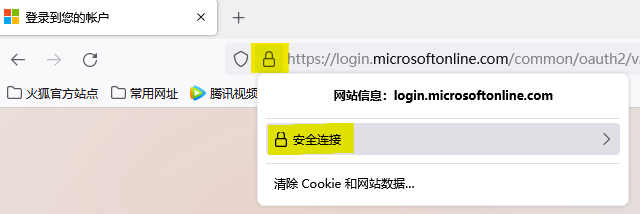
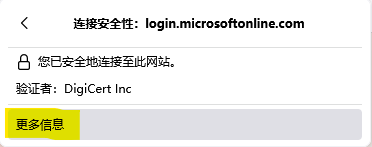
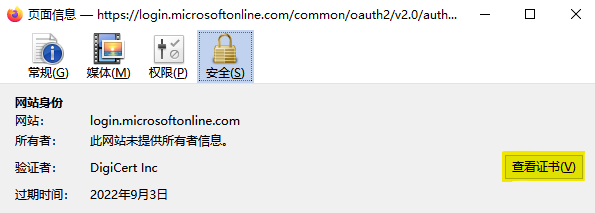
Choose Root CA
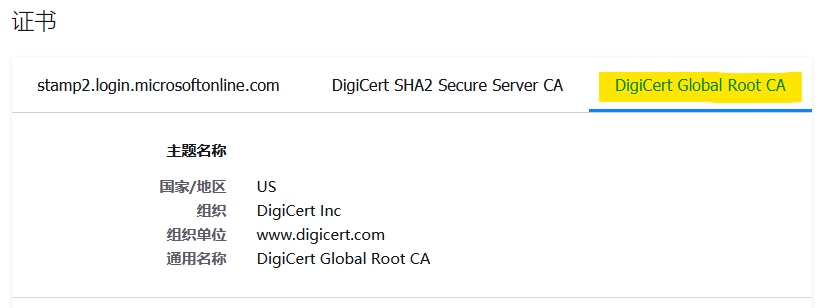
Download single certificate

Repeat above steps for another website graph.microsoft.com. Rename these 2 certificate files and place them in OS folder.
Create DB Wallet and Import Certificates
To enable access to website using SSL, it is necessary to import the websites’ SSL certificate into Oracle database wallet.
Create wallet file:
mkdir -p /home/oracle/wallet
cd /home/oracle/wallet

orapki wallet create -wallet /home/oracle/wallet -pwd MyWalletPassword -auto_login
Import the certificates. Repeat it for both websites.
$ORACLE_HOME/bin/orapki wallet add -wallet /home/oracle/wallet \
  -trusted_cert -cert "/home/oracle/wallet/digicert-root.cer" -pwd MyWalletPassword
Create and Assign ACL
In Oracle 11gR2, use following scripts to create and assign ACL.
Create ACL:
BEGIN
  DBMS_NETWORK_ACL_ADMIN.CREATE_ACL (
    acl => 'APEX_200100_TO_AZURE.xml', -- File name
    description => 'allows APEX access to Azure',
    principal => 'APEX_200100', -- APEX DB user name, must be in upper case
    is_grant => TRUE,
    privilege => 'connect');
END;
/
Assgn ACL:
BEGIN
  DBMS_NETWORK_ACL_ADMIN.ASSIGN_ACL ( -- Creates the first target host
    acl => 'APEX_200100_TO_AZURE.xml',
    host => 'login.microsoftonline.com');
  DBMS_NETWORK_ACL_ADMIN.ASSIGN_ACL ( -- Creates the second target host
    acl => 'APEX_200100_TO_AZURE.xml',
    host => 'graph.microsoft.com');
END;
/
Assign wallet ACL. Make sure the wallet path start with “file:/“
BEGIN
  DBMS_NETWORK_ACL_ADMIN.assign_wallet_acl ( -- Creates the first target host
    acl => 'APEX_200100_TO_AZURE.xml',
    wallet_path => 'file:/home/oracle/wallet');
END;
/
In Oracle 21c, use following scripts to create and assign ACL.
declare
  l_username varchar2(30) := 'APEX_200200';
begin
  dbms_network_acl_admin.append_host_ace(
    host => 'login.microsoftonline.com',
    lower_port => 443,
    ace  =>  xs$ace_type(privilege_list => xs$name_list('connect'),
                        principal_name => l_username,
                        principal_type => xs_acl.ptype_db));

  dbms_network_acl_admin.append_host_ace(
    host => 'graph.microsoft.com',
    lower_port => 443,
    ace  =>  xs$ace_type(privilege_list => xs$name_list('connect'),
                        principal_name => l_username,
                        principal_type => xs_acl.ptype_db));
  commit;
end;
/
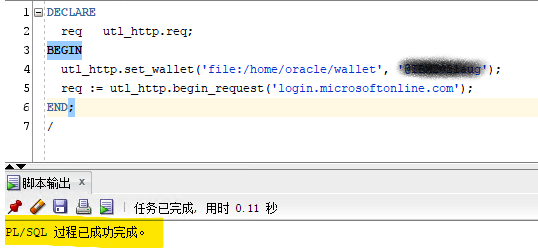
Verify HTTPS connection.
To ensure above setups are completed without error, make a call to microsoft website using PLSQL:
Configure Azure AD to Create New Application for APEX SSO
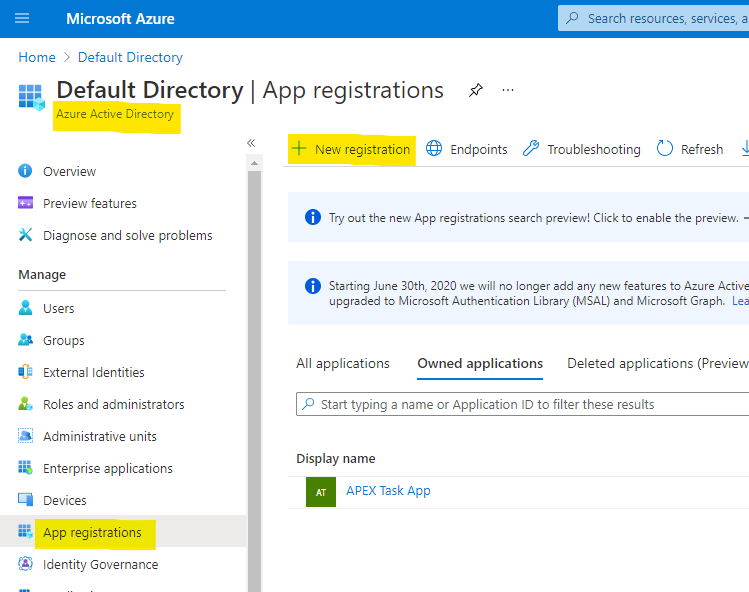
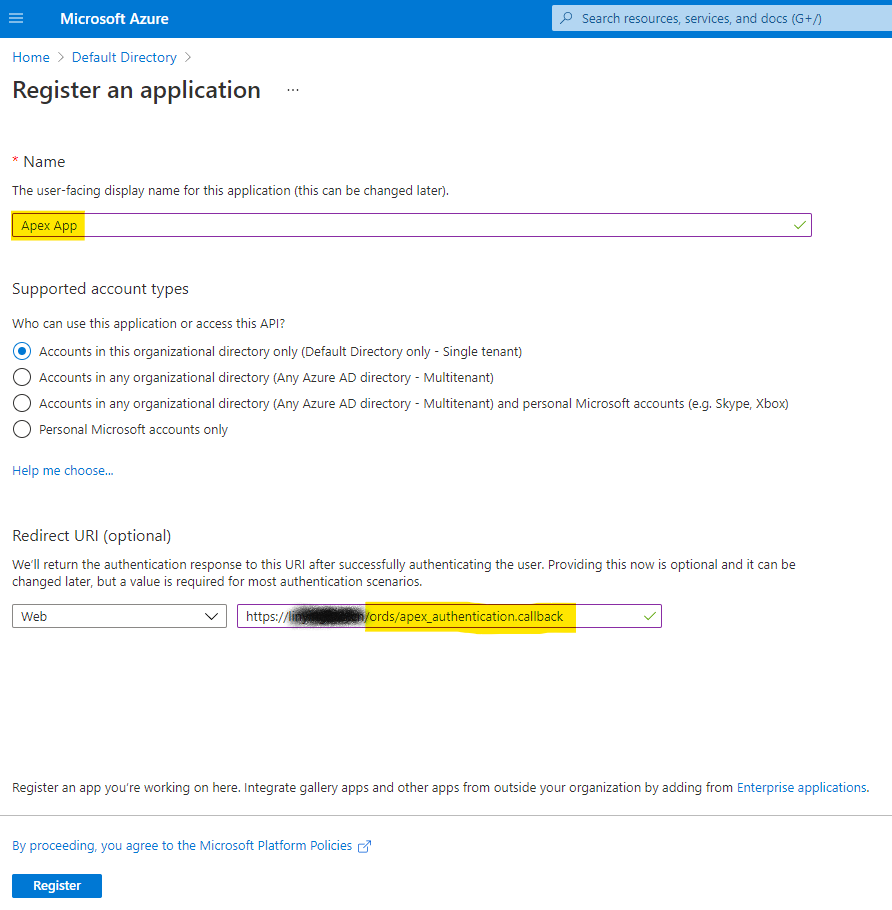
Create New Application
Provide APEX callback URL in recirect URI list. During SSO, after authentication completes, Azure will redirect back to APEX application. If this is not setup, it may cause error during the redirect activity.
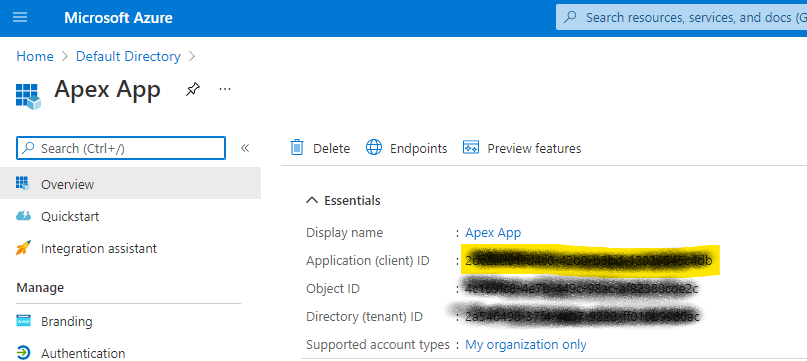
Markdown Client ID, this will be used in APEX condiguration.
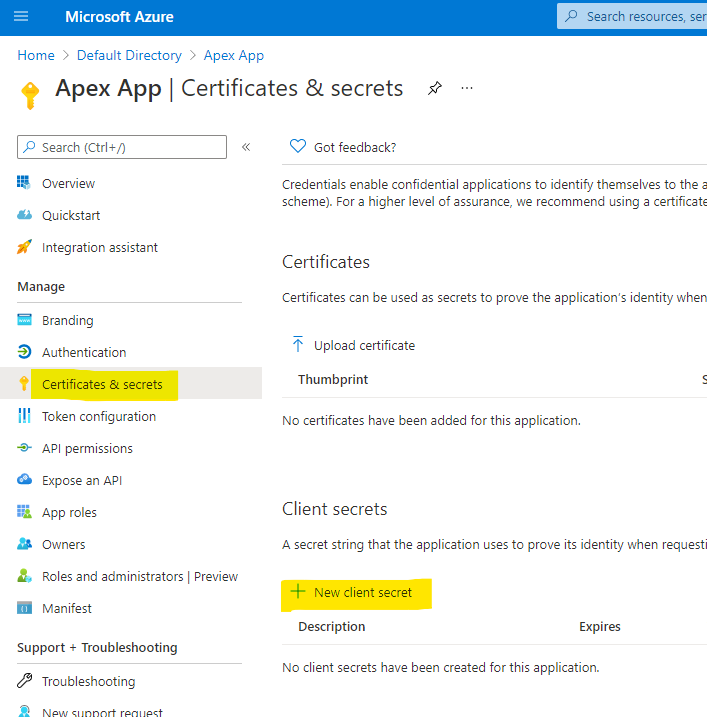
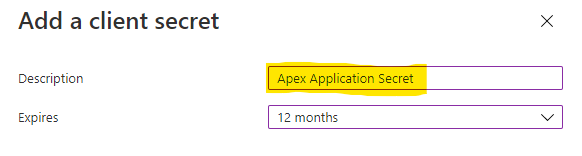
Add Client Secret for Azure Application
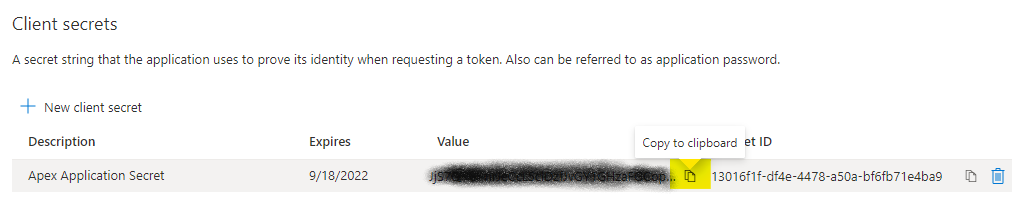
Markdown the secret, this will be used in APEX configuration.
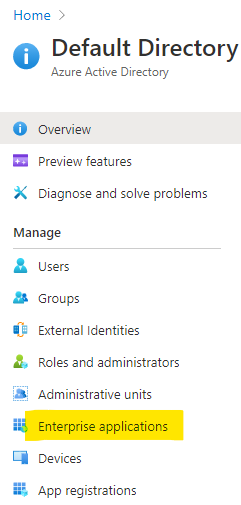
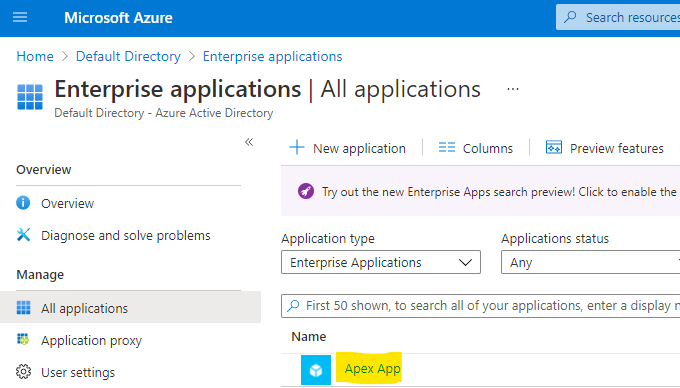
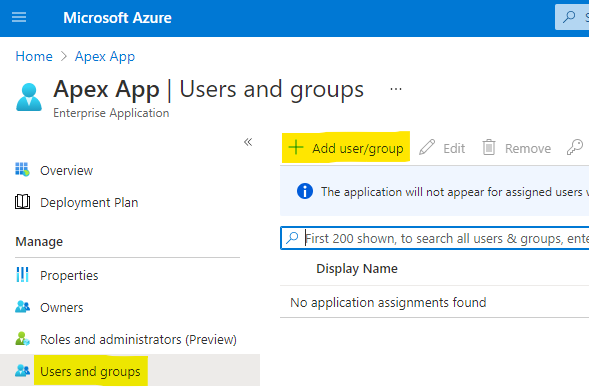
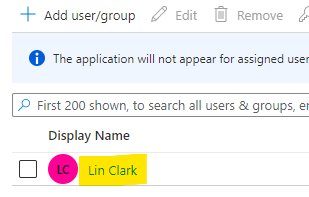
Assign Azure AD User to Application
Configure APEX Application to Use Single Sign On
Configure APEX to Use Wallet as Web Credential
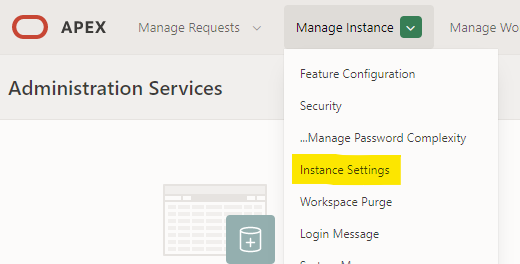
Login to INTERNAL workspace as APEX admin and navitate to Manage Instance -> Instance Setting.
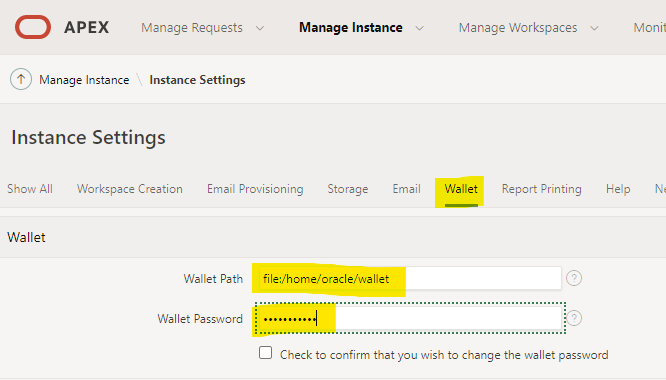
Go to Wallet tab and input wallet path as well as wallet password.
Add Web Credential for APEX application
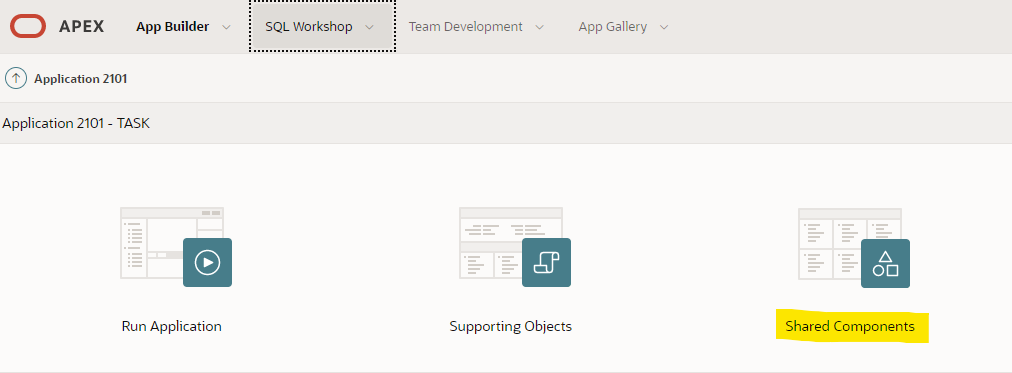
In APEX application management page, go to Shared Components
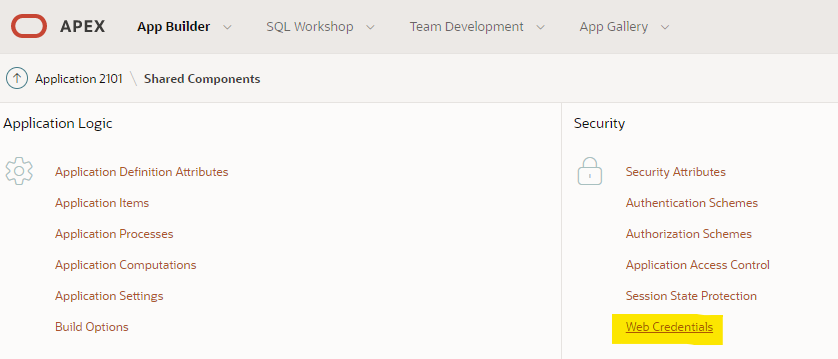
Go to Security -> Web Credentials
Specify Client ID and Client Secret got from Azure application client secret.
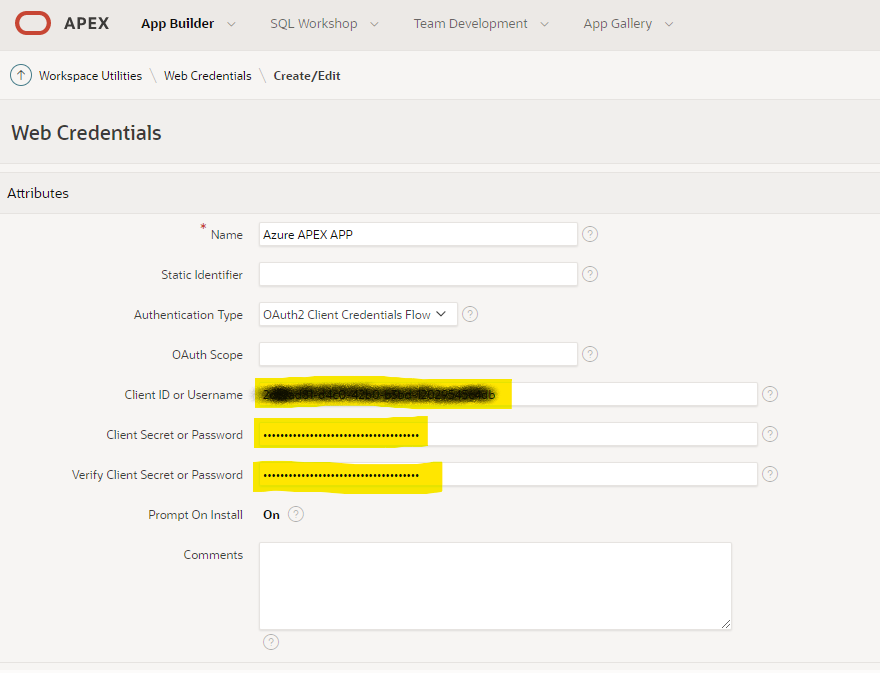
Add Authentication Schema for SSO
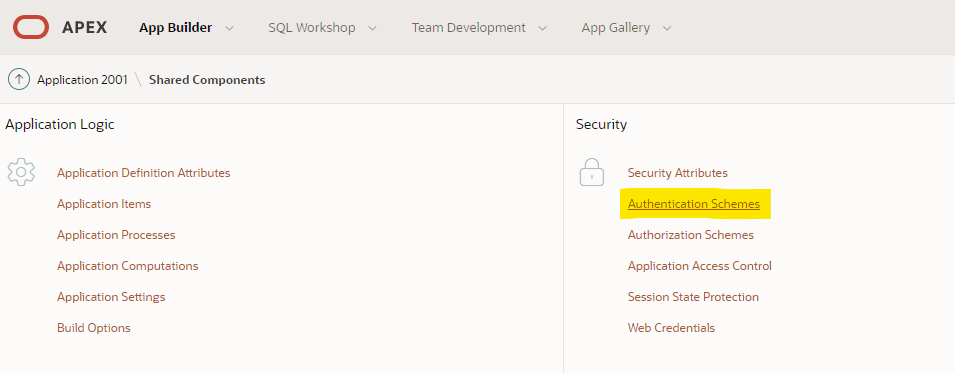
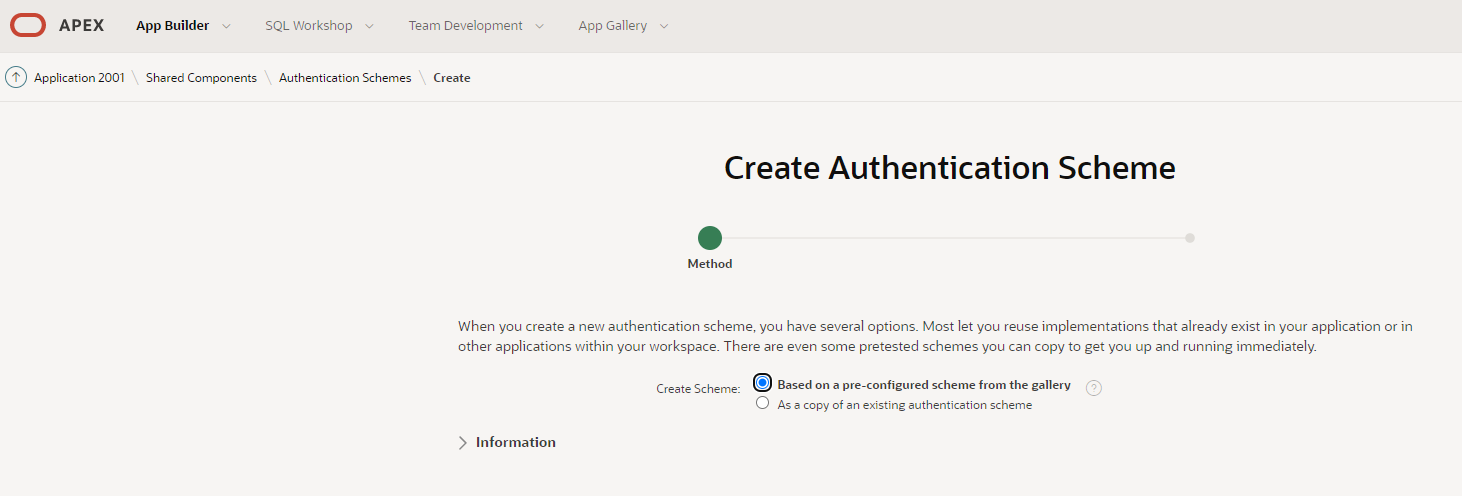
Leave default for first step
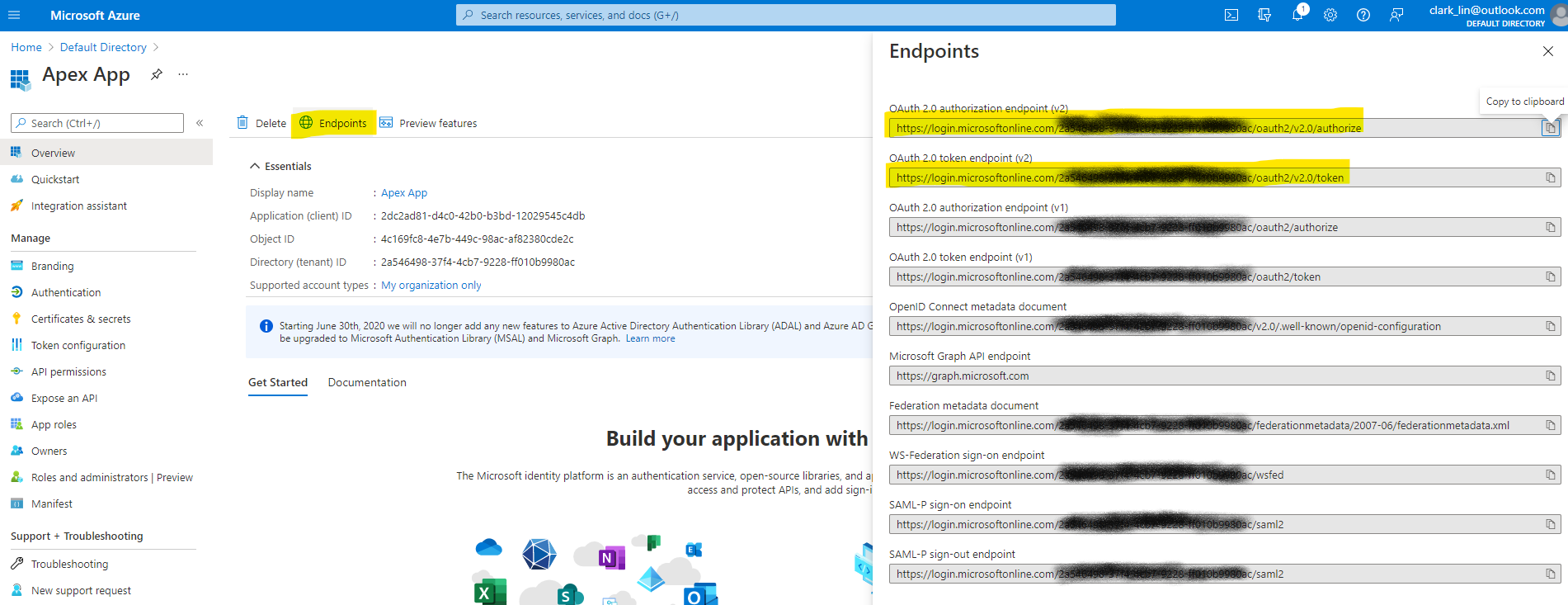
Select Social Sign-in as Schema type, specify endpoint URL as per endpoints provided by Azure.
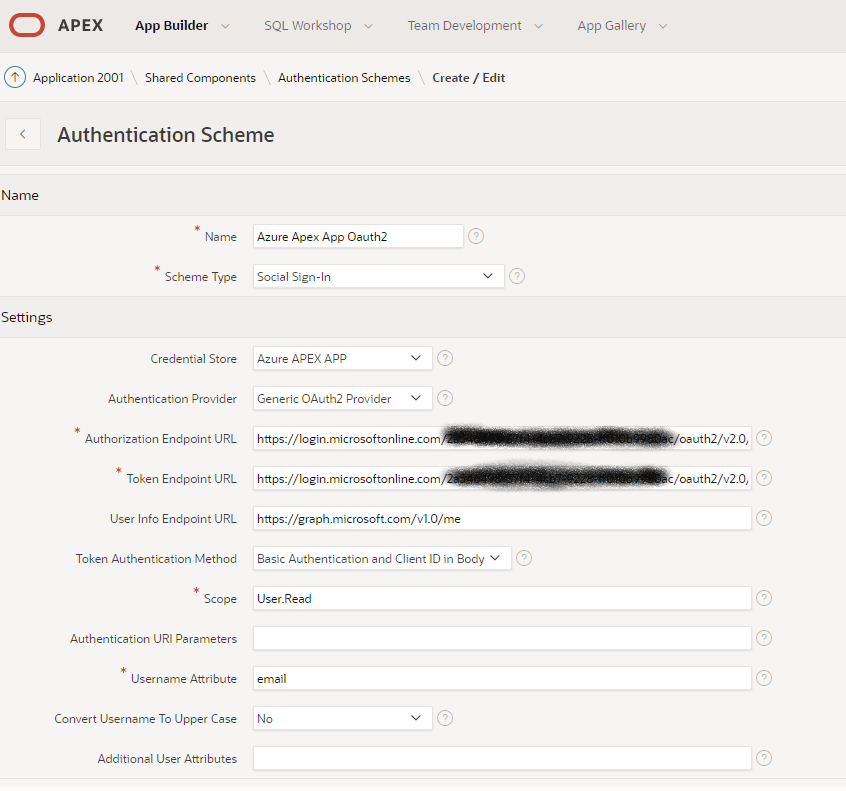
To get endpoints from Azure, click the Endpoints.
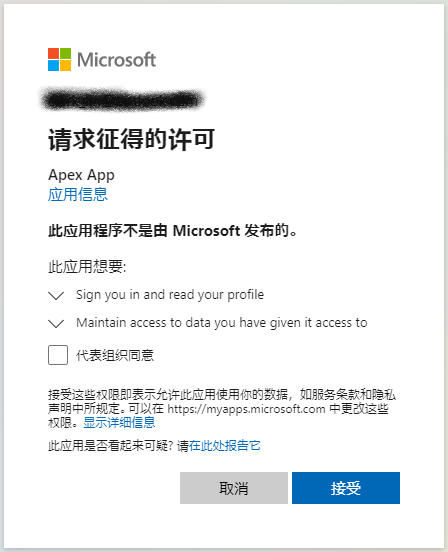
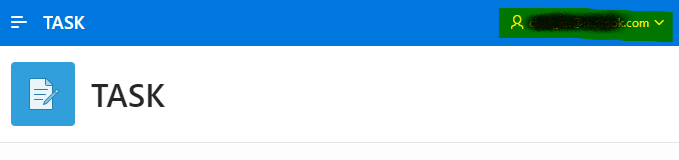
Test and verify SSO for APEX
Known Certificate Issue
Symptom
As of Apr-2026, the APEX application failed during Microsoft SSO authentication with the following error:
ORA-29024: Certificate validation failure
The failure occurred when APEX attempted to access the Microsoft OpenID Connect (OIDC) metadata endpoint. As a result, users could not sign in using Azure AD SSO.
Root Cause Analysis
The Oracle wallet used by APEX outbound HTTPS connections was originally created in September 2021.
At that time, the wallet only contained older public CA certificates:
GlobalSign Root CA
Baltimore CyberTrust Root
DigiCert Global Root CA
After verification with openssl and browser certificate inspection, the current Microsoft Entra ID endpoint certificate chain was identified as:
DigiCert Global Root G2
└── Microsoft Azure RSA TLS Issuing CA 08
└── stamp2.login.microsoftonline.com
The existing wallet did not include:
DigiCert Global Root G2
Microsoft Azure RSA TLS Issuing CA 08
Because of this missing trust chain, Oracle could not validate the HTTPS certificate presented by Microsoft, resulting in:
ORA-29024: Certificate validation failure
This issue is consistent with a certificate chain rotation on the Microsoft side, while the Oracle wallet remained unchanged since 2021.
Resolution
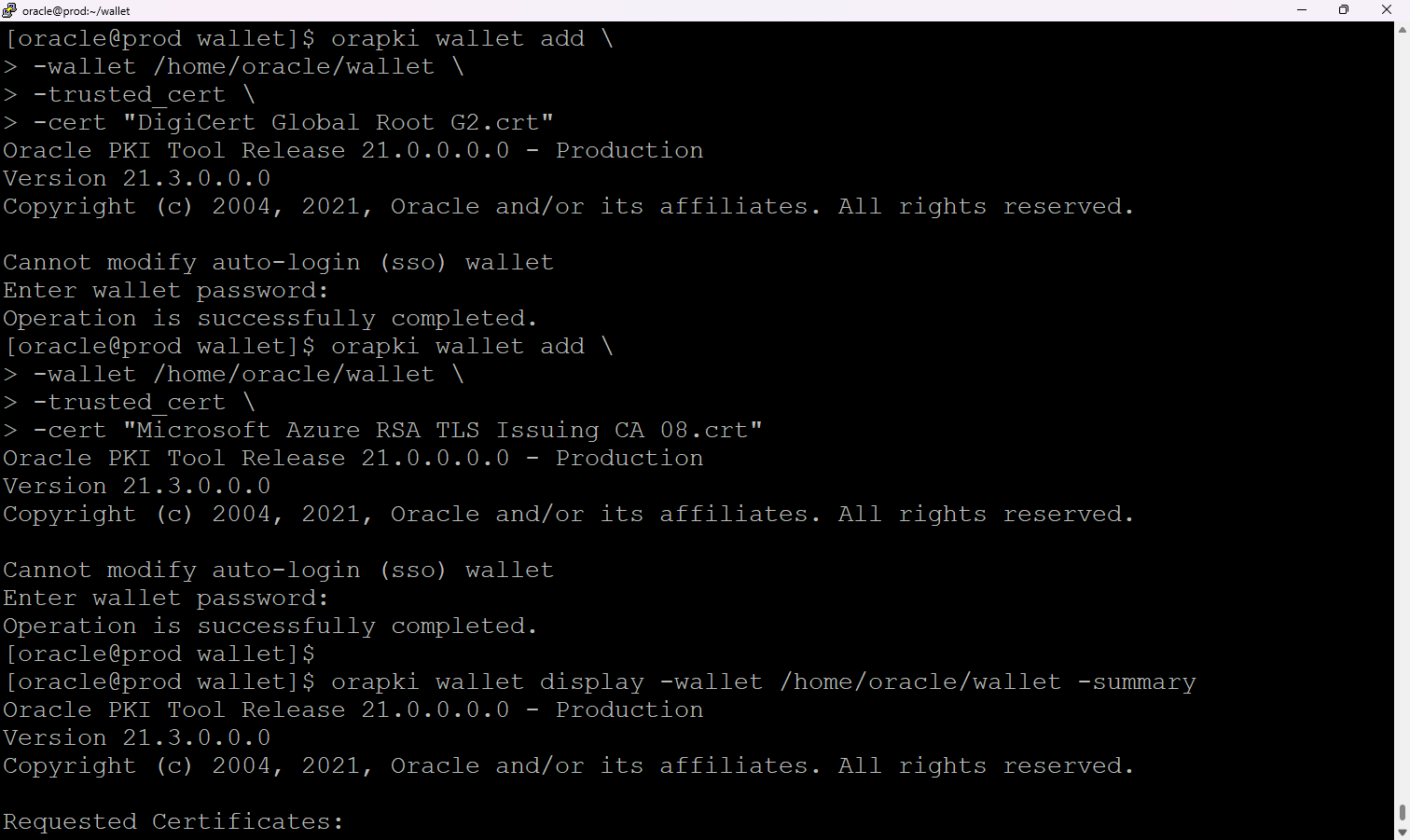
The latest Microsoft CA certificates were downloaded and imported into the Oracle wallet:
DigiCert Global Root G2.crt
Microsoft Azure RSA TLS Issuing CA 08.crt
The following commands were used:
orapki wallet add -wallet /home/oracle/wallet -trusted_cert -cert "DigiCert Global Root G2.crt"
orapki wallet add -wallet /home/oracle/wallet -trusted_cert -cert "Microsoft Azure RSA TLS Issuing CA 08.crt"
After import, wallet validation confirmed the new trusted certificates were present.